Seamlessly working & playing with Mac OS and Windows
What to expect
Assuming you have a pretty MacBook, a classic PC case, one or some monitors and a combo of shiny mechanical keyboard/mouse. You might want work on your Mac, and play games on your PC and you both want to view stuffs on your large monitors. This article will guide you how to setup a really efficient way to switch between them effortlessly.
Pros
- Switching between macOS and windows using the same peripheral devices: monitors, keyboard, mouse,.. etc.
- Minimal switching effort (change between machines in 10s)
- Almost no behavior-changes in using your keyboard, like, function keys.
Cons
- Required sometime to setup your cables, devices and software
Latest Update from 2023
This is very easy from 2022 till now if we get the (kind of) modern monitor from Dell: U2723QE (latest one is U2725QE, but this one does well). This monitor support dual input from different PC.
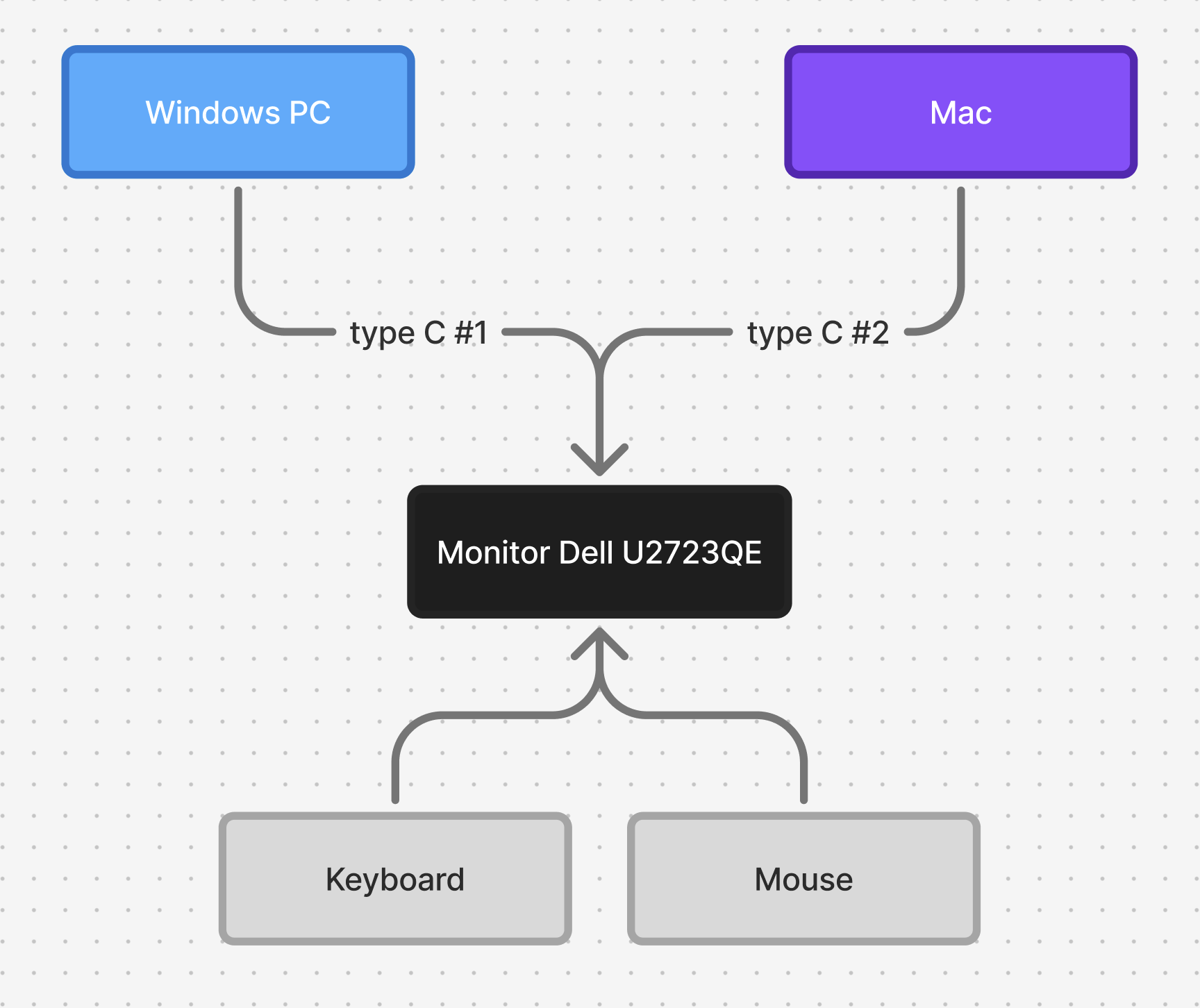
Just plug 2 C cables, each one from 1 machine. Switching inputs will switch to corresponding peripheral devices.
The rest of the article is written in 2018-2020, using an old setup. Continue reading if you’re interested in an old method.
What you need (dual monitor setup) - 2018-2022 setup
- A PC with multiple display output ports, most VGAs can do this nicely. 01 Display port (DP) & 01 HDMI will do.
- Two monitors that have at least 02 inputs of Display port & HDMI on each one.
- A macbook with at least 02 USB type C ports.
- A KVM switch, preferably USB switch.
Note:
- If you’re using 4K monitors, cables will be a little bit complicated. Since most HDMI dongles won’t deliver 4K 60Hz.
- If you’re using legacy macbooks with mini Display Ports, things got complicated too but it is still possible to do so. Actually, I updated this article from that to this newer type-C version.
Unify Setup
This setup helps you using the same keyboard and mouse or other any input device with 2 computers, but only 01 computer is active at a time.
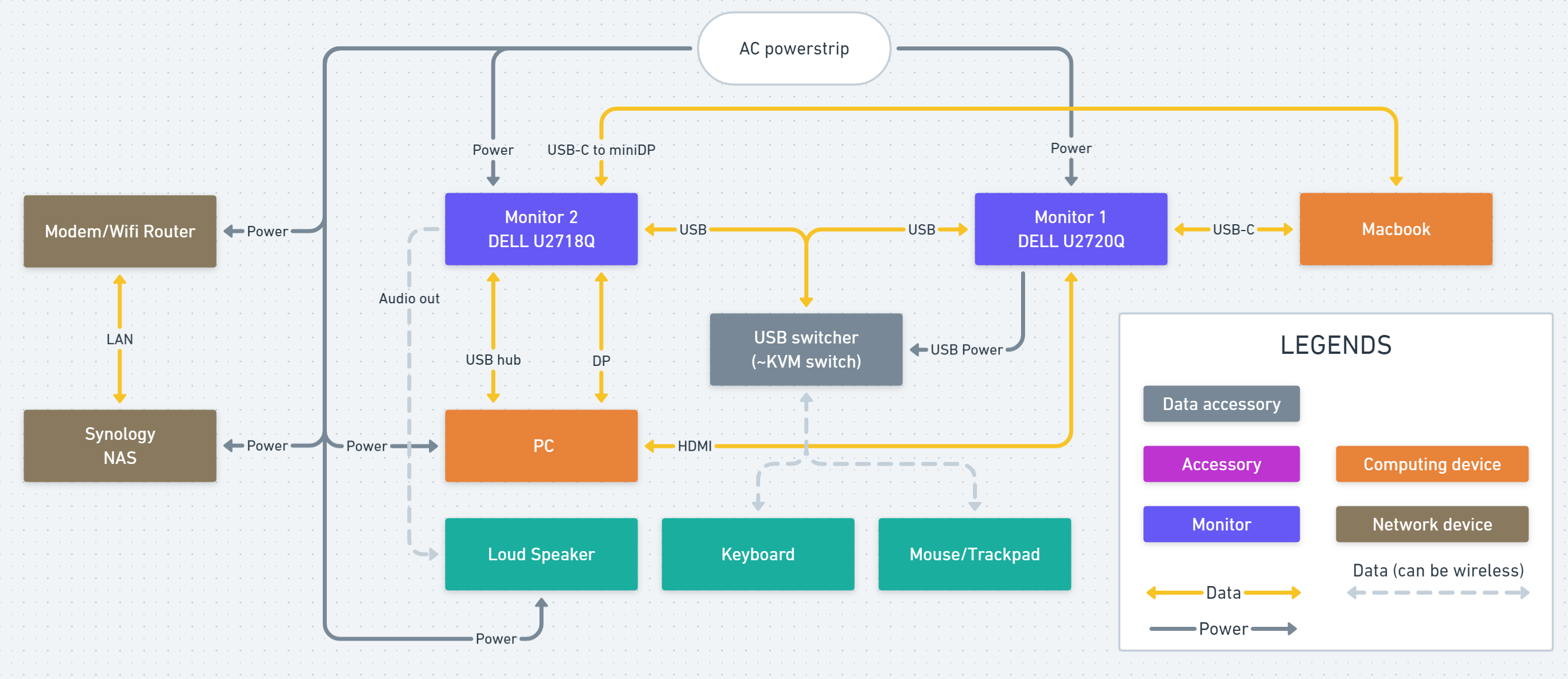
Devices list
- Two 27” 4K monitors: Dell U2718Q and U2720Q
- A macbook with 2 type C ports. Cables are:
- Type C to C (Power Delivery with thunderbolt, unique cable, comes with U2720Q)
- Type-C to Display Port (Buy them on ebay, amazon,.. they are cheap. Make sure they are 4K 60Hz capable)
- A PC with HDMI and Display Port outputs, with networking via wifi. Cables are:
- HDMI - HDMI (usually come with monitor)
- Display Port - mini Display Port (usually come with Dell monitor)
- Input devices such keyboard and mouse (can be wireless)
- A KVM switch (USB only). This device is a USB hub that can be switched between 02 sources via a single button. Setup:
- You will plug both Keyboard and mouse to this KVM device.
- It has 02 input USB ports, plug each of them to each monitor.
- (Optional) If you’re sharing any other devices between machines, plug them here.
- A pair of speakers. I strongly recommend connect the speakers to the monitor, not the PC nor Macbook themselves, so you don’t have to unplug anything when switching.
- NAS and router are optional devices showing here.
Switching procedure
- Sleep your current working machine (recommended). You may leave it be if needed
- (If not connected) Connect your Macbook (2 cables: Type-C and Type-C to DP).
- Push the button on the KVM.
- Turn on/Wake up the other device. Your new device will be ready in seconds.
That’s all. It will take you less than 10s :D
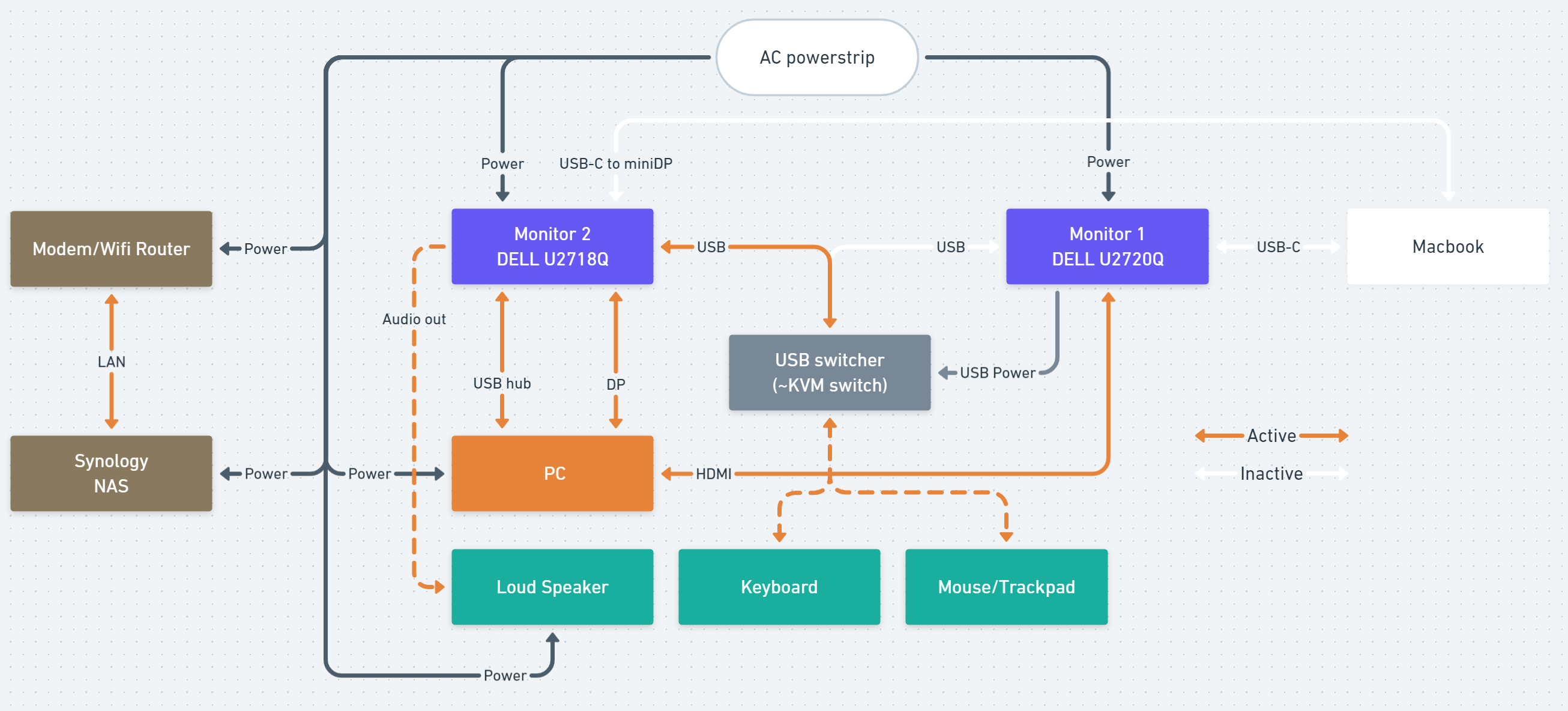
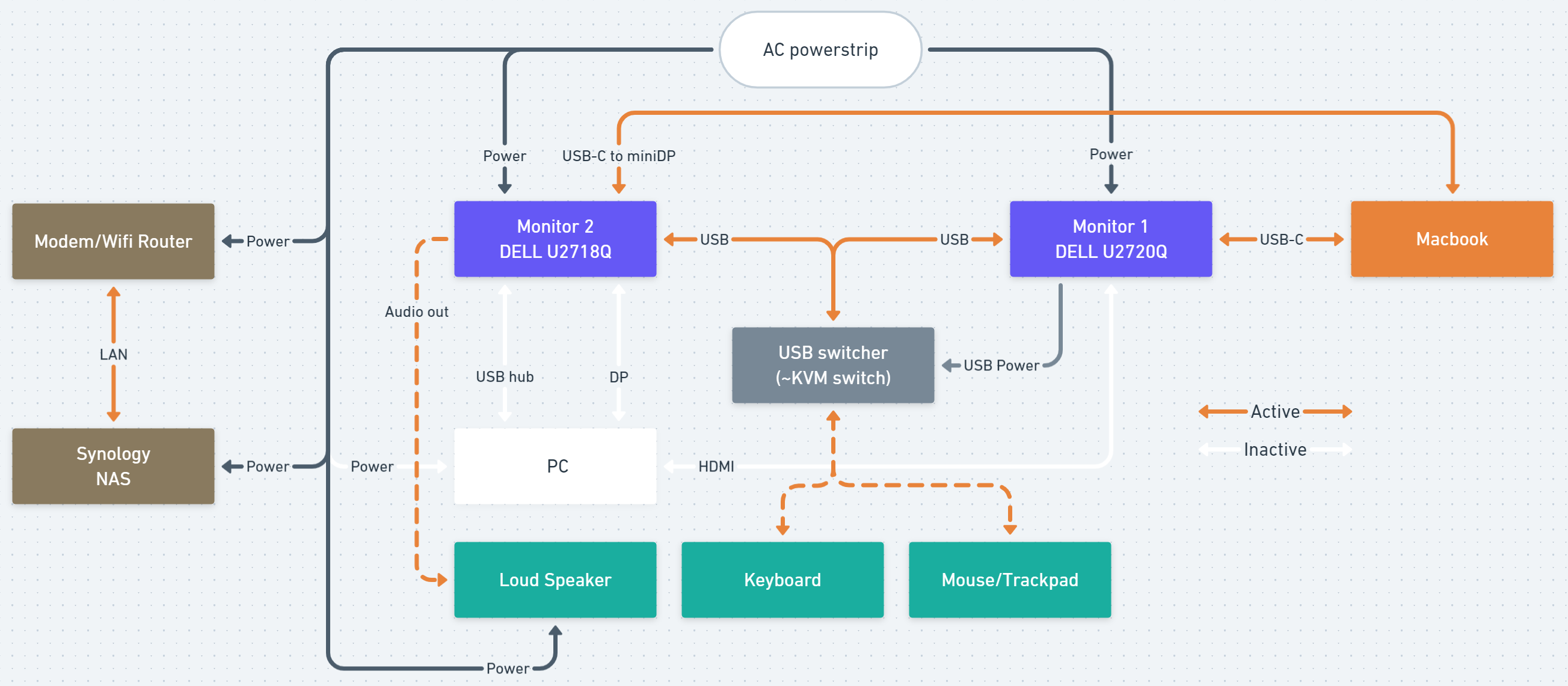
Switching from PC to Mac or vise versa are the same. These are two extra diagram showing how each setup is running.